
If you’re one of the millions who are using mobile devices to take their work with them, then you know how important it is to have a professional email presence no matter what device you use. Part of that presence is a professional signature that lets you send messages from your phone or tablet with the same contact information as your desktop computer.
Here’s how you can set up that signature on your iOS 7 device:
Step 1 –
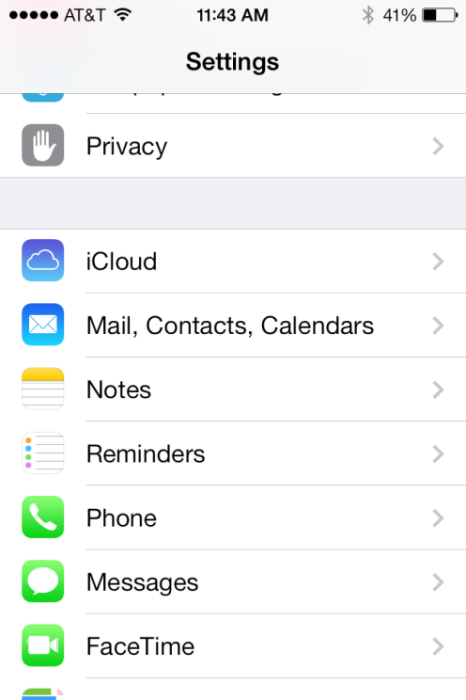
From the home screen, select the Settings app, then tap “Mail, Contacts, Calendars”
Step 2 –
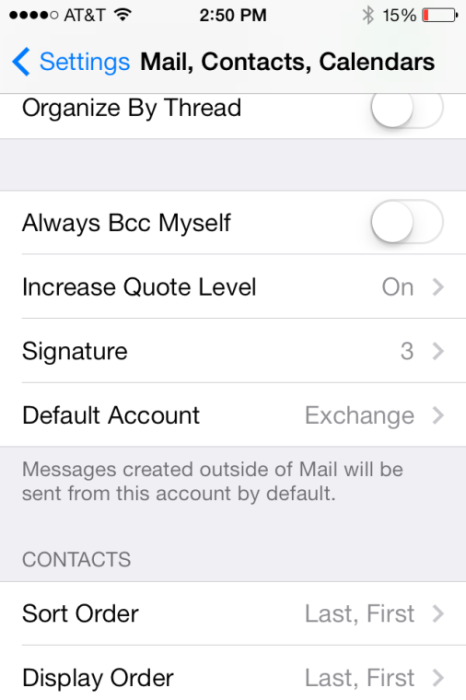
Tap the “Signature” option. If you have multiple email accounts and want a different signature for each one, select “Per Account” and select the account you wish to change. Otherwise, tap “All Accounts.”
Step 3 –
Enter your signature. Note that you can copy and paste formatted text into the box if you want links or bold text – if you choose to type it in, you only will be able to add plain text.

Saving your email signature on iOS7
When you have entered your signature, tap the “back” arrow at the top of the screen. Your signature changes will automatically be saved and will be included on future outgoing messages.
